How To Fix A Slow Computer
A practical step-by-step guide to how to fix a slow computer, including preparation, instructions, common issues, tips, and next steps.
How To Fix A Slow Computer
A slow computer can be incredibly frustrating, turning simple tasks into a waiting game. This guide provides a series of clear, practical steps to diagnose and fix the common software issues that cause your computer to lag, freeze, or take forever to start. We will walk you through the most effective solutions, from simple restarts to more advanced cleanup, helping you reclaim your computer's speed without needing to buy new hardware. These instructions are designed for everyday users of both Windows and macOS.
Fast Answer
- Restart Your Computer: Clears temporary memory and closes stuck processes.
- Close Unused Apps: Frees up processing power (CPU) and memory (RAM).
- Free Up Disk Space: Your system needs free space to operate efficiently.
- Limit Startup Programs: Stops apps from slowing down your boot time.
Before You Start
- Administrator Access: You will need the administrator password for your computer to uninstall programs and change system settings.
- Internet Connection: An active internet connection is required to download software and operating system updates.
- External Hard Drive (Recommended): Use an external drive or cloud service to back up your important files before making significant changes.
Step-by-Step Instructions
Restart Your Computer
This is the oldest trick in the book for a reason. Restarting your computer is a quick and effective way to fix a wide range of issues. It clears out your computer's temporary memory (RAM) and shuts down any programs or processes that may have gotten stuck running in the background, consuming resources without you knowing it.
Don't just close the lid of your laptop or put it to sleep. Go to the Start Menu (Windows) or Apple Menu (Mac) and select Restart. Let the computer fully shut down and start back up again. For many people, this simple action is enough to restore performance, at least temporarily.
Close Background Programs and Browser Tabs
Every application and browser tab you have open uses a portion of your computer's processing power and memory. If too many are running at once, your system can get bogged down. The biggest culprits are often programs you forgot you even had open.
On Windows, press Ctrl + Shift + Esc to open the Task Manager. On a Mac, open the Activity Monitor (you can find it using Spotlight search with Cmd + Space). Look at the CPU and Memory columns to see what's using the most resources. If you see a program you're not using, select it and click "End Task" (Windows) or "Quit Process" (Mac). Be careful not to close anything you don't recognize, as it could be a critical system process.
Free Up Disk Space
Your computer's main storage drive (hard drive or SSD) needs empty space to work properly. Your operating system uses this free space as "virtual memory" when your RAM gets full. If your drive is more than 85-90% full, you will notice a significant slowdown in performance.
Start by emptying your Recycle Bin or Trash. Then, look in your Downloads folder and delete any large files you no longer need. Both Windows and macOS have built-in tools to help:
- On Windows: Search for "Disk Cleanup" in the Start Menu and run it. It will find and help you remove temporary files, system logs, and other junk.
- On Mac: Click the Apple menu, choose "About This Mac," go to the "Storage" tab, and click "Manage." This tool will give you recommendations for clearing space.
Uninstall Unnecessary Software
Over time, we all accumulate programs we tried once and never used again. These applications take up valuable disk space and some may even run background processes that slow your computer down without you realizing it. Taking a few minutes to remove them is a great way to clean house.
- On Windows: Go to Settings > Apps > Apps & features. Sort the list by size or install date to find programs you don't need. Select an app and click Uninstall.
- On Mac: Open the Finder and go to the Applications folder. Drag the icon of the app you want to remove to the Trash. Some more complex apps may have their own uninstallers.
Disable Startup Programs
Many applications are configured to launch automatically when you turn on your computer. While this can be convenient for apps you use every day, having too many can make your startup time painfully slow and leave them running in the background, consuming resources all day long.
- On Windows: Open the Task Manager (Ctrl + Shift + Esc) and go to the Startup tab. You can see the "Startup impact" of each program. If you see something you don't need immediately, right-click it and select Disable.
- On Mac: Go to System Settings > General > Login Items. Under "Open at Login," you can select any app you don't want to launch automatically and click the minus (-) button to remove it.
Update Your Operating System and Drivers
Software updates aren't just for new features; they often include critical security patches and performance improvements. An outdated system can be slower and more vulnerable. Similarly, drivers—the software that lets your OS communicate with your hardware—can cause issues if they're old.
Check for updates regularly:
- On Windows: Go to Settings > Update & Security > Windows Update and click "Check for updates." Windows Update also handles many driver updates automatically.
- On Mac: Go to System Settings > General > Software Update. Your Mac will check for any available updates for macOS.
Scan for Malware and Viruses
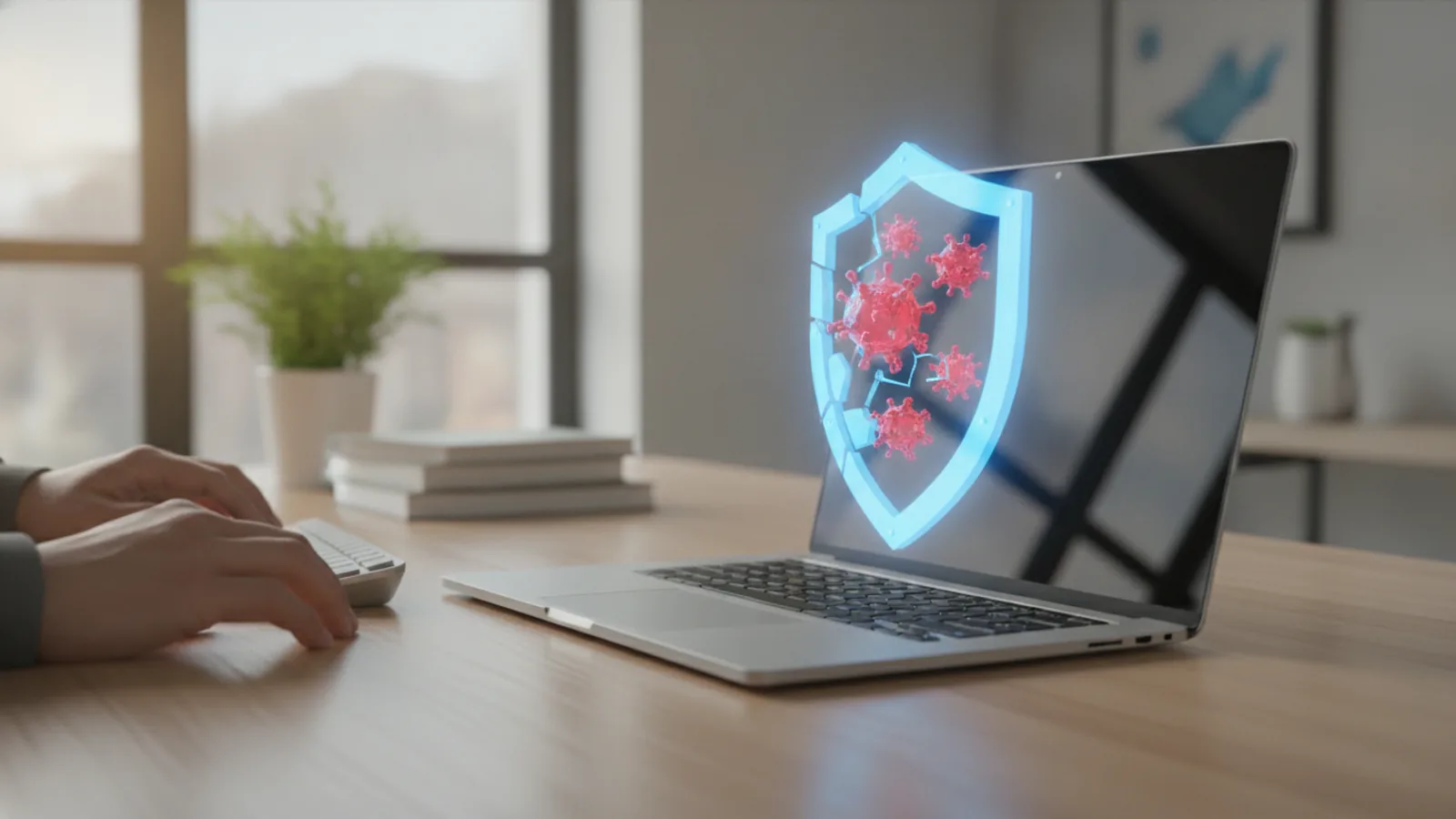
Malicious software, such as viruses, spyware, and adware, can run hidden processes that steal your computer's resources, track your activity, and cause general instability and slowness. Running a thorough scan is essential if your computer has suddenly become slow for no obvious reason.
You don't necessarily need to buy antivirus software. Both Windows and macOS have powerful, free, built-in tools.
- On Windows: Open Windows Security from the Start Menu, go to "Virus & threat protection," and run a "Full scan."
- On Mac: macOS has built-in protections that work in the background. However, if you suspect an infection, you can use a trusted, free third-party tool like Malwarebytes for Mac to run an on-demand scan.
Adjust Visual Effects for Better Performance
Modern operating systems use animations and visual effects like transparency to look slick, but these can tax older or less powerful hardware. You can turn them off to free up resources that can be used for more important tasks.
- On Windows: Search for "performance" in the Start Menu and select "Adjust the appearance and performance of Windows." In the dialog box that opens, choose the "Adjust for best performance" option, or manually uncheck effects you don't care about.
- On Mac: Go to System Settings > Accessibility > Display. Here you can check the boxes for "Reduce motion" and "Reduce transparency."
Quick Reference
| Situation | Use this | Why |
|---|---|---|
| Computer is very slow right after starting up | Manage Startup Programs | Too many applications launching at once overwhelms your system during boot-up. |
| Things get slow when I'm browsing the web | Close extra browser tabs | Each tab consumes memory (RAM). Having dozens open can max out your available memory. |
| Everything feels sluggish all the time | Free up disk space and uninstall unused apps | A full storage drive and constant background processes are common causes of general slowness. |
| A specific program is always freezing | Check for software updates for that program | A bug in an older version of the application could be causing the performance issue. |
Common Problems When Fixing a Slow Computer
Even when following a guide, you might run into a few snags. Here’s how to handle some common issues.
I uninstalled programs, but my computer is still slow. What now?
Uninstalling software is just one piece of the puzzle. The slowness could be caused by other issues. Continue through the other steps in this guide, especially checking for malware, managing startup programs, and ensuring you have enough free disk space. Often, it's a combination of factors, not just one single problem.
My computer says I have plenty of free space, so why is it so slow?
Disk space is a common culprit, but not the only one. Your issue is more likely related to a lack of available RAM or a CPU that's being overworked. Use the Task Manager (Windows) or Activity Monitor (Mac) to see if a specific process is consuming all your memory or processing power. A malware infection could also be the cause, even if your disk space is fine.
I'm afraid to delete files or programs I don't recognize.
That's a smart instinct! It's better to be cautious. A good rule of thumb is: if you didn't intentionally install it or don't know what it is, search for its name online before deleting. Never delete files from system folders like C:\Windows. When uninstalling programs, stick to software you recognize, like games you no longer play or productivity tools you've replaced. The goal is to remove bloat, not critical system components.
Advanced Tips for a Faster Computer
If you've tried all the software fixes and your computer is still lagging, the problem might be your hardware. Here are a few next-level steps to consider.
Upgrade Your RAM
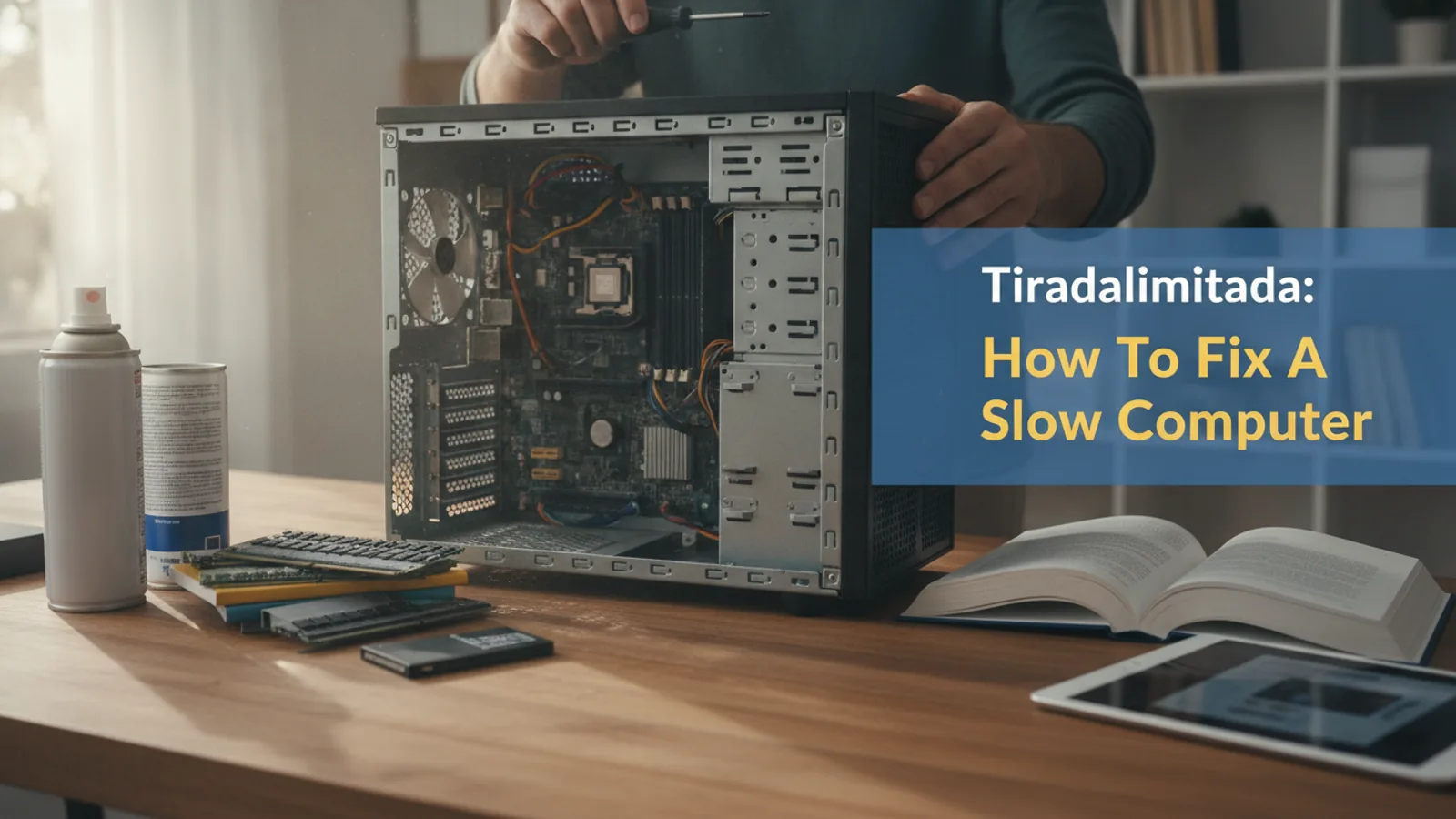
RAM (Random Access Memory) is your computer's short-term memory. If you frequently have many apps or browser tabs open, you might be running out of it. You can check your RAM usage in Task Manager or Activity Monitor. If it's constantly at or above 90%, adding more RAM can provide a significant speed boost. This is often the most cost-effective hardware upgrade you can make.
Switch to a Solid-State Drive (SSD)
If your computer still uses an older mechanical hard disk drive (HDD), upgrading to a solid-state drive (SSD) is the single biggest performance upgrade you can buy. SSDs have no moving parts and are dramatically faster at reading and writing data. Your computer will boot up in seconds, programs will launch instantly, and the whole system will feel much more responsive.
Defragment Your Hard Drive (for HDDs Only)
Important: This tip only applies to older mechanical hard drives (HDDs), not modern SSDs. Over time, the data on an HDD can become scattered, or "fragmented." Defragmenting reorganizes this data so the drive can read it more efficiently. Windows has a built-in "Defragment and Optimize Drives" tool that usually runs on a schedule, but you can run it manually to be sure.
How To Fix A Slow Computer FAQ
Why is my computer so slow all of a sudden?
A sudden slowdown is often caused by a recent change. Common culprits include a newly installed program that's resource-heavy, a background operating system update, or a malware infection. Try to remember what you were doing right before it became slow and start your troubleshooting there.
Does having a lot of files on my desktop slow down my computer?
Yes, it can, especially on older systems. Each icon on your desktop is treated as an active window by the operating system, which uses a small amount of memory to render it. Having hundreds of files can add up, slowing down the time it takes for your desktop to load and refresh. It's better to organize files into folders.
Is it safe to use "PC cleaner" apps?
We advise extreme caution. While some reputable tools exist, the market is flooded with "PC cleaner" or "registry cleaner" applications that are unnecessary at best and harmful at worst. Many use scare tactics to get you to buy a subscription, and some even contain malware themselves. The built-in tools like Disk Cleanup (Windows) and Storage Management (Mac) are safer and usually sufficient.
How can I tell if I need more RAM?
Open the Task Manager (Windows) or Activity Monitor (Mac) while you are doing your normal tasks. Go to the performance or memory tab. If you see that your memory usage is consistently at or near 100%, and your computer feels sluggish, it's a strong sign that you would benefit from a RAM upgrade.
Final Checklist for Fixing a Slow Computer
- Back Up First: Confirmed that important personal files are safely backed up to an external drive or cloud service.
- Perform a Restart: Completed a full shutdown and restart to clear temporary memory.
- Close Active Programs: Used Task Manager or Activity Monitor to close resource-hungry applications.
- Clean Up Storage: Freed up at least 15-20% of your total disk space by deleting unnecessary files and emptying the trash.
- Manage Software: Uninstalled programs you no longer use and disabled unnecessary startup items.
- Run Updates: Checked for and installed all available operating system and driver updates.
- Scan for Malware: Performed a full system scan for viruses and other malicious software.
- Assess Next Steps: If the computer remains slow, consider advanced options like hardware upgrades (RAM or SSD).