How To Change Outlook Font Size
A practical step-by-step guide to how to change outlook font size, including preparation, instructions, common issues, tips, and next steps.
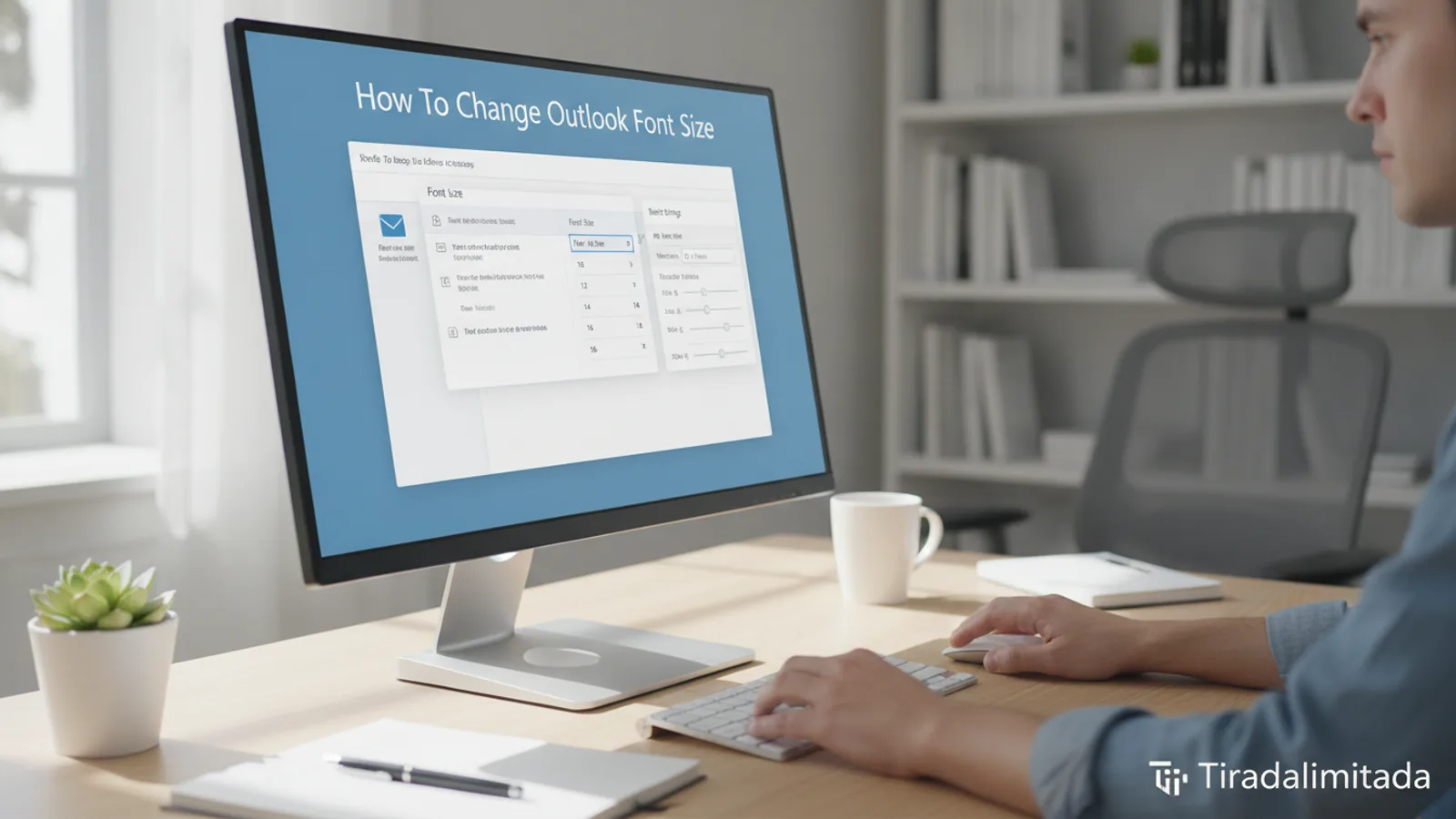
How To Change Outlook Font Size
This guide explains how to approach how to change outlook font size, including the preparation, practical steps, common mistakes, and final checks that help you finish with confidence.
Before You Start
Step-by-Step Instructions
Quick Reference
Common Problems When You Change Outlook Font Size
Problem: Font changes only apply to one part of Outlook, not others.
Reason: Outlook has many separate font settings for different areas: the reading pane, the message list, and composing new emails all have their own controls. You might have only changed one specific setting.
Fix: Review all the steps in this guide. Identify which specific part of Outlook isn't displaying the desired font size and follow the corresponding step to adjust it. For example, if your new emails look good but your inbox list is still small, refer back to "Adjusting Font Size for the Message List."
Problem: My outgoing emails look great to me, but recipients say the font is different or too small/large.
Reason: While you set a default font, the recipient's email client (e.g., Gmail, Apple Mail, another version of Outlook) might display emails differently. They might have their own default viewing settings or accessibility options that override your chosen font, especially if you picked an unusual font that they don't have installed.
Fix: Stick to common, web-safe fonts like Arial, Calibri, Times New Roman, or Verdana. These fonts are widely available and tend to display more consistently across different email platforms. You can't control how a recipient's system renders your email, but using standard fonts gives you the best chance of consistency.
Problem: Text looks blurry or pixelated after changing the font size or overall interface scale.
Reason: This usually happens when you use your operating system's display scaling (covered in Step 5) to make everything larger. Scaling can sometimes cause images and text not designed for that specific resolution to appear less sharp.
Fix: Try adjusting your display scaling to a different percentage. Sometimes, certain scaling percentages (like 125% or 150%) work better with your monitor's native resolution. Ensure your monitor is set to its recommended native resolution in your display settings. If blurriness persists, it might be better to adjust individual Outlook font settings rather than relying solely on system-wide scaling.
Problem: I can't find the "View Settings" or "Stationery and Fonts" buttons.
Reason: Outlook's interface can vary slightly between different versions (e.g., Outlook 365, Outlook 2019, Outlook 2016) or if you're using a simplified ribbon view. The names or exact locations of buttons might be slightly different.
Fix: If you're struggling to find a specific button, use Outlook's "Tell me what you want to do" search bar (usually at the top of the window, near the title bar). Type in keywords like "View Settings" or "Stationery and Fonts," and Outlook will often point you directly to the correct option.
Advanced Tips for How To Change Outlook Font Size
Customize Views and Apply Them
Instead of just changing the font for your current inbox, you can create a custom view with your preferred font settings and then apply this view to multiple folders. This saves time and ensures consistency across your mail organization.
- After adjusting all your desired font settings in the View Settings > Other Settings dialog (from Step 1 and 2), click OK.
- Back on the View tab, in the "Current View" group, click Change View, then select Save Current View as a New View....
- Give your view a descriptive name (e.g., "My Large Font View") and choose who can see it (e.g., "Only for this folder" or "All Mail and Post folders").
- Now, to apply this view to another folder, navigate to that folder, go to the View tab, click Change View, and select your saved custom view.
Using Outlook's Accessibility Options (Windows)
Beyond font sizes, Windows has built-in accessibility features that can enhance the entire Outlook experience, especially if you have visual impairments. These can complement your font size changes.
- Magnifier: Press Windows key + Plus sign (+) to open the Magnifier tool, which can zoom in on any part of your screen, including Outlook.
- High Contrast Themes: In Windows Display settings, you can apply high contrast themes (under "Personalization > Colors") which can make text stand out more clearly against backgrounds, improving readability in Outlook and other apps.
- Text Cursor Indicator: This feature makes your text cursor larger and easier to find, which can be helpful when composing emails with larger fonts. Find it in Windows Settings > Accessibility > Text cursor.
Quick Access Toolbar for Font Commands
If you frequently change font sizes or styles while composing emails, you can add font formatting commands directly to your Quick Access Toolbar (QAT) for easy access. The QAT is the small customizable toolbar usually located above the ribbon.
- While composing a new email, right-click on any font command in the ribbon (e.g., the Font Size dropdown, Bold button).
- Select Add to Quick Access Toolbar.
- The command will now appear in your QAT, allowing you to access it with a single click, regardless of which tab of the ribbon you're currently on.
How To Change Outlook Font Size FAQ
Q: Can I change the font size for only one email I'm composing?
A: Yes. When you are composing an email, simply highlight the text you wish to change, then use the font size dropdown menu in the "Format Text" tab of the ribbon. This will only affect the selected text, not your default settings for future emails.
Q: Why does my Outlook font revert to small after I restart my computer?
A: If your font settings don't "stick" after a restart, ensure you are clicking OK through all the confirmation dialog boxes (e.g., "Font," "Other Settings," "View Settings," "Outlook Options") when making your changes. If you close a dialog with "Cancel" or just close the window, the changes won't be saved. Also, if you use a shared computer, another user's settings or a system policy might be overriding your preferences.
Q: Does this guide apply to Outlook on the web (outlook.com)?
A: No, this guide is specifically for the Microsoft Outlook desktop application for Windows and macOS. Outlook on the web is a browser-based application, and its font size is primarily controlled by your web browser's zoom settings (usually Ctrl + Plus/Minus or by using the browser's menu). Some limited font settings for composing emails might be available within the web interface itself under settings.
Q: How do I revert to Outlook's default font size?
A: To revert, you'll need to go back to the same settings locations described in this guide for each specific area (reading pane, message list, composing emails). A common default font for Outlook is Calibri, size 11. For the message list, a default size of 8 or 9 points is often used for column and row fonts. Simply select these standard options in the respective font dialog boxes.
Q: Can I make the folder pane (left sidebar) font size larger?
A: The font size for the folder pane and other interface elements like the ribbon and navigation buttons is usually controlled by your operating system's display scaling settings (as detailed in Step 5). There isn't a direct Outlook setting to change only the folder pane's font without affecting other UI elements.
Final Checklist for How To Change Outlook Font Size
Before you consider your font size adjustments complete, run through this quick checklist to ensure everything is set up to your liking:
By following these steps and checking these points, you can customize your Outlook font sizes to create a much more comfortable and efficient email environment.